Everything an unattended screen needs
Listed by the job to be done. Same features in both editions, free and unlocked.
Coming to the App Store in November 2026. Version 1.0 is in development. This page describes what the first version is planned to include; details can change before release.
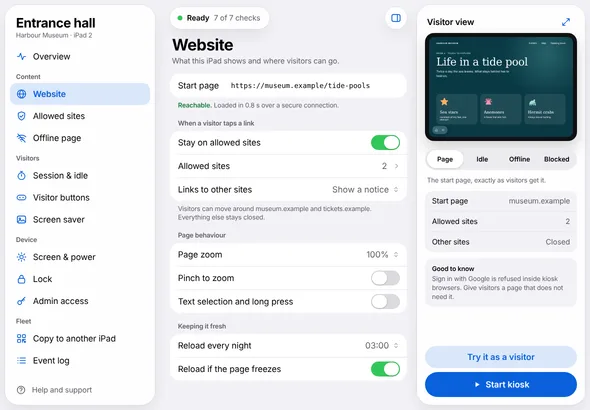
Show one website, full screen
The page is the whole screen. Visitors see your site, not a browser.
- No address bar, no tabs, no status barThe page fills the screen in both orientations. You can pin the orientation.
- Websites, local addresses and offline bundlesOpen an https or http address, a device on your local network, or a site stored on the iPad.
- Exhibit modeOne switch turns off text selection, long-press menus, link previews, pinch and double-tap zoom, swipe navigation, pull-to-refresh, drag and drop and file pickers.
- Your own CSS and JavaScriptHide a cookie banner or a footer on a site you do not control. Desktop mode and a custom user agent are there when a site needs them.
Keep visitors on your site
You decide where a visitor can go. Everything else stays closed, with a short message instead of an error.
- Allowed and blocked sitesList the hosts a visitor may open, with wildcards such as *.example.com. A blocked list wins over the allowed list.
- Links that try to leaveThe visitor sees "That link leaves this screen" and stays on the page. Links that open a new window open in place if they are allowed.
- Phone, mail, App Store and download linksClosed by default, so a tap cannot leave the app.
- Camera and microphoneOff by default. Allow them only for the pages that need them.
Give every visitor a fresh start
The next person should find the screen as you set it up, not as the last person left it.
- Idle reset with a warningAfter the time you choose, the screen asks "Still there?" and counts down. A touch keeps the session; silence starts it over. The warning lasts at least 20 seconds.
- Private sessionsEach session gets its own temporary storage. Cookies, local storage and history do not survive a reset. Or keep sign-ins between resets, if your site needs that.
- Visitor buttonsOptional Home, Back and Reload buttons in a corner of your choice. They can hide themselves after a few seconds.
- Video keeps playingWhile a video or audio is playing, the idle timer waits.
- Screen saverA black screen, a clock, a picture or a local page. A touch brings back the start page with a new session.
Recover without anyone there
Networks drop, pages freeze, tablets run for weeks. The app is built to bring the screen back by itself.
- Network dropsA calm offline page with your own text and automatic retries. After two minutes it says "Still offline", and any touch tries again at once. The page returns as soon as the network does.
- Server errors and crashed pagesAn error from the server counts as a failed load. If the system stops the page, the start page is loaded again.
- Frozen pagesOnce a minute the app checks that the page still answers. A page that has gone silent is reloaded.
- Scheduled reloadsReload on an interval or at a fixed time each night, only while nobody is touching the screen.
- Screen and powerThe iPad stays awake while the kiosk runs. Dim it when idle, and dim or darken it at night on a schedule.
Work without Wi-Fi
A basement gallery or a trade-show booth does not need a network.
- Offline bundleImport a folder or a ZIP file with your HTML, CSS, JavaScript, images and video. It is served from the iPad itself.
- FallbackIf your online start page cannot be reached and a bundle is on the iPad, the kiosk can show the bundle instead.
Set up once, copy everywhere
The first iPad takes two minutes. The tenth should not take longer than the second.
- Three-step setupAddress, preset, lock. Five presets set the idle time, the reset, the gestures and the buttons for you: Museum or exhibit, Menu or catalog, Sign-in or form, Wall dashboard and Display only.
- QR codeThe setup is shown as a QR code. The next iPad scans it and shows a summary of what will change before it applies it.
- Settings fileExport the setup as a file and send it with AirDrop, Files or mail.
- Managed configurationSet every setting from your MDM, plus two that exist only there: the admin PIN and a lock on local changes. The purchase and the offline bundle are done on the device. Managed values apply without a restart and show as locked on the iPad.
Know it is ready. See what happened.
One look answers the question every kiosk owner has: is it working?
- Readiness checkSeven checks, each with a green mark or a "what to do" that takes you to the right setting: start page loads, allowed sites set, idle reset set, PIN set, offline page ready, device locked to the app, power connected.
- OverviewThe first admin screen: seven readiness checks with the one to fix first, today's events and a preview of what visitors see.
- Event logStarts, resets, reloads, failed loads, blocked links, network changes and admin sign-ins. Kept on the iPad, exportable as text, with no visitor data in it.
Lock the iPad, and keep your way back in
Apple provides the lock. The app tells you which lock fits and whether it is on.
Step by step: how to lock an iPad to one website.
- Lock assistantExplains Guided Access, Single App Mode and Autonomous Single App Mode in plain words and walks you through the one you pick.
- Works with MDMOn a supervised iPad the app can enter Single App Mode when the kiosk starts and leave it after your PIN.
- Hidden admin entranceFive taps in the admin corner, top right unless you move it, then your admin PIN of four to eight digits. The app shows you the gesture before the kiosk starts. Wrong PINs are slowed down.
What it does not do
Better to know before you buy.
It is not a lock by itself
The app limits where visitors can go inside it. Keeping them inside the app is the job of Guided Access or Single App Mode, which are part of iPadOS.
No printers, scanners or card readers
Glassfront shows web pages. It does not talk to peripherals.
No cloud dashboard and no accounts
There is no server of ours, so there is nothing to sign in to and no fleet console. Fleets are handled with QR codes, settings files and your MDM.
No page builder
You bring the website or the offline bundle. The app shows it.
Requirements
iPad with iPadOS 16 or later, or iPhone with iOS 16 or later. One app for both; the iPhone shows the same screens in a narrow layout. The interface is in English.
Coming to the App Store in November 2026 · Free to set up and test, every feature included, with a Glassfront bar at the bottom of the kiosk screen · $29.99 once per device removes it · No account